
Razer Orochi USB/Bluetooth Mobile Gaming Mouse
Razer Orochi Gaming Mouse Review
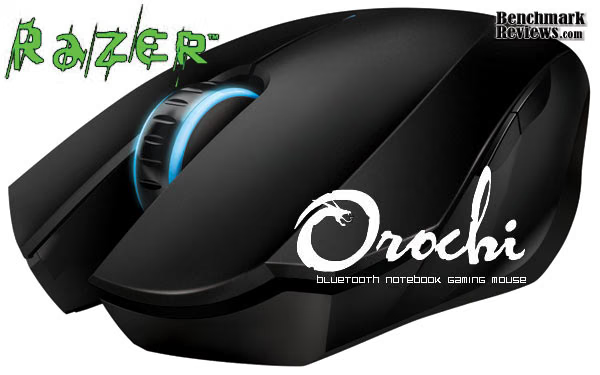
High quality gaming peripheral equipment is a speciality of Razer. In this article Razer brings us a new product, a first for its kind, the Razer Orochi mobile gaming mouse with both USB-2.0 and Bluetooth capability. Traditional mice suffer from poor mobility, often adding a huge lump inside of your laptop bags. Long wires and the need for a "perfect" surface often make setting up a hassle. Benchmark Reviews tests and inspects the Razer Orochi gaming mouse (model RZ01-00300100-R3U1) to see whether it really is the solution for gaming on the go that will revolutionize mobile gaming.
Razer has made its name in the gaming equipment business with quality, performance, and style. Razer recently released the Razer Mamba, a full-sized wireless gaming mouse with built in battery and charging dock, and the Razer Imperator, a mouse focusing on ergonomics. I consider the Razer Orochi to be something in between. Creating a mobile gaming mouse is often a paradox, as the drastic reduce in size limits functionality, performance, and often result in poor ergonomics. Long wires are also troublesome for gaming on the go. The Razer Orochi comes with Bluetooth wireless technology, solving one problem, but performance and comfort are what the small-form Razer Orochi gaming mouse will challenge.
About Razer, USA
Razer collaborates with gamers to develop, manufacture and market cutting-edge gaming peripherals utilizing proprietary technologies that give gamers the competitive edge. Razer reinvented the computer gaming industry by bringing this competitive edge to gamers when professional computer gaming was in its infancy. In the mid 90s, with the advent of networked gaming and competitive first-person-shooter (FPS) games, gamers found that their legacy peripherals were inhibiting rather than enhancing their gameplay. Razer revolutionized professional gaming with their stylish peripherals, offering performance and functionality beyond anything in the past. Razer products were made for gamers, by gamers.
Razer Orochi Features
- Model: RZ01-00300100-R3U1
- Color: Black
- Lighting Color: Blue
- DPI Sensitivity Range: * Razer PrecisionTM 3G Laser sensor
- Tracking up to 100 inches per second
- Ambidextrous design
- Razer SynapseTM On-board Memory*
- On-The-Fly SensitivityTM adjustment*
- Zero-acoustic UltraslickTM Teflon feet
- Gold-plated USB connector
- Powered by 2 AA batteries
- Approx. size in mm: 99(L) x 67.8(W) x 35(H)
*Not applicable to Apple Mac OS
RZ01-00300100-R3U1 Specifications
Wireless Mode
- Gaming optimized Bluetooth 2.0 connectivity
- Up to 2000DPI sensitivity
- 125Hz polling/ 8ms response
- Powered by 2 AA batteries
- High performance batteries are recommended for longer battery life
- To conserve power, switch off the Razer Orochi when not in use
Wired Mode
- Detachable three foot, lightweight, braided micro-USB cord
- Up to 4000DPI sensitivity
- 1000Hz UltrapollingTM/ 1ms response
System Requirements:
-
Bluetooth enabled PC with USB port
-
Windows XP / x64 / Vista / Vista64 or Mac OS X(v10.4 and above)
-
Internet connection (for driver installation)
-
At least 35MB of hard disk space
Closer Look: Razer Orochi
The packaging of the Razer Orochi is fairly representative of how Razer packages its products: like jewellery. Razer has always done a great job in terms of presentation. The Orochi's packaging isn't as flashy as some of Razer's other products, but it is eye-catching and gives a wonderful first impression.
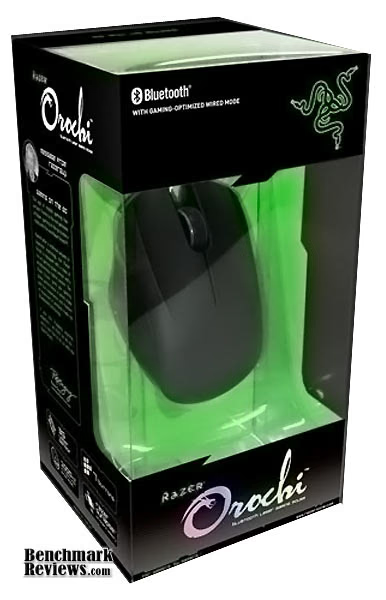
There are two main compartments to the Razer Orochi packaging. The back contains a slim black box filled with Razer goodies, and the plastic container in the front slides right out.
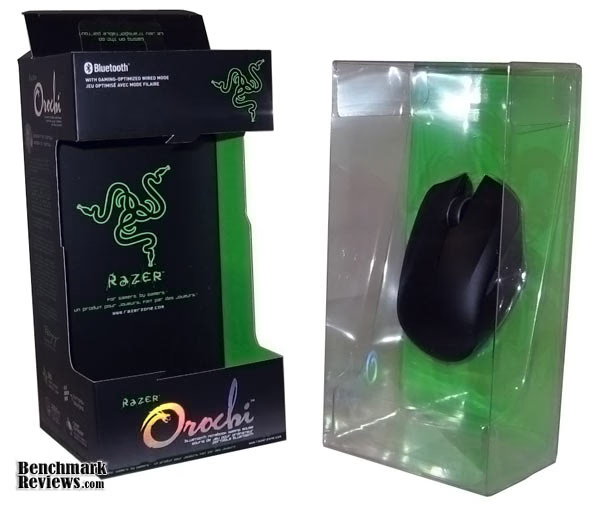
The Razer Orochi comes with many items, all neatly organized in their containers. Out of the box we get the Razer Orochi Bluetooth mouse, USB 2.0 cable, a travel pouch, quick start and detailed instruction manuals, a Razer sticker, and two AA batteries to get the action going immediately. The decision to power the Orochi's wireless mode with AA batteries makes sense, as now true infinite wireless mode is possible. It's probably a good idea to own a couple of rechargeable batteries though otherwise the re-occurring price of operating the Orochi can get pretty high. Razer's official site states 1-3 month of usage per pair of batteries. On a rechargeable pair probably less than that. So far my rechargeable batteries have been shaping up pretty well, and battery life doesn't seem to be an issue with the Razer Orochi.
One thing happens to be missing though, and that's driver CDs. While I do not mind going online to check out the latest drivers (which everyone should do anyways), not everyone enjoys having to search online for drivers.

The travel pouch has always been a Razer tradition, and it makes so much sense for the Razer Orochi. The pouch happens to have two compartments to separate the mouse, USB cable, and batteries. If you have a laptop with Bluetooth compatibility, then that USB cable can be ditched forever.

The Razer Orochi Bluetooth gaming mouse comes with an impressive package. For usual customers of Razer, this package is nothing new. The free AA batteries was a good choice to get things started right away. It'll also give you a month to find some rechargeable battery deals. For new customers, this is not an ordinary everyday mouse. The Razer Orochi offers much more as we will see.
Razer Orochi Detailed Features
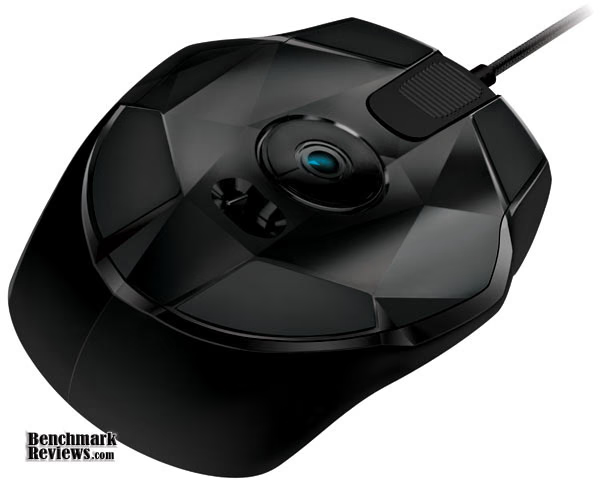
The look and feel of the Razer Orochi is as magnificent as the packaging and presentation. It seemed so tiny (fits right in the middle of your palm) I was unsure if this mouse would be any good. For full-sized gaming mice, such as my Microsoft SideWinder, my entire hand fits on the mouse and my pinkie rests comfortably on the side. It took some getting used to for the Razer Orochi because it only fits 4 fingers, and my pinkie ends up scraping the gaming surface. Once I got used that the fit is extremely comfortable.
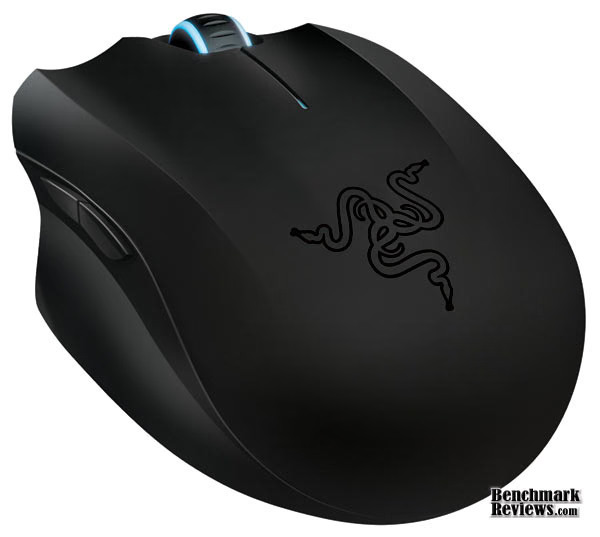
The Razer Orochi is essentially symmetrical, and all buttons can be customized, so this mouse is ready for everyone. There are in total 9 different inputs to customized, including 7 buttons (4 side buttons, 2 main, and mouse wheel) and mouse up/down.

The sides of the Razer Orochi have nice curves to allow a comfortable grip. The buttons happens to be right above my thumb, the best possible location for macro-buttons.

Razer Orochi's lighted scroll wheel makes an excellent decoration on your desk. Note that the Orochi scroll wheel is quite tight, much tighter than what I'm used to. For me the mouse scroll is an essential part of everyday use as I rarely page up and down any other way. This is not something you would need to worry about unless you use your mouse very hardcore and plan to use it that way for more than two years.

The USB cord that comes with the Razer Orochi is very short, about 90cm long. This will not reach from the top of a table to the USB port on a PC on the floor unless you hook it up to the front USB panels. But this short length happens to be perfect for plugging into a laptop sitting on the desk. The cable is gold plated and comes with a cap to protect the head of the USB. The wire also isn't your everyday rubber coating.

The switch for turning on Orochi's wireless mode is right below the laser sensors. The bottom of the Orochi has four very slippery pads (teflon feet) that the mouse moves on. The pads happen to be very effective. My Razer DiamondBack and Microsoft SideWinder all have the "scratchy" sound when moving around on hard surfaces, but the Orochi slides without any noise. The smoothness however often makes accuracy a pain, as friction has been reduced to a minimum. This really is more of a plus than minus, but will be something gamers need to adapt to. On a slightly different issue, the Orochi happens to be difficult to maintain. Lots of dust gets stuck right under the pads and become almost impossible to clean unless a tooth-pick is used to scratch out the dust.

When plugged in, the cable fits snugly and tightly into the Orochi. Removing it will require a hard tug on the wires unfortunately, as the bottom rippled grip offers no help since there's no place to grip on the top.
The packaging and presentation of the Razer Orochi is impressive. It offers a surprisingly comfortable grip.
Razer Orochi Software
For any gaming mouse, the driver is a fairly important part of the product. I used firmware v1.03 and driver 1.02.
In terms of completeness, the Razer Orochi driver has everything one would expect to see. There is everything from button functions to performance settings to lighting (for battery life). However every time you open the Razer Orochi Configurator or apply changes, it takes a couple seconds to load and freezes your screen. Not sure how the driver works, I assume it's reading the onboard memory for the Razer Orochi, but the delay is annoying at times and makes adjustment during game impossible.

All sensitivity and polling adjustments can be made here, in much greater detail than what Window's Control Panel has to offer. For serious gamers this is where you can tweak your mouse to its optimal settings.

One of the biggest problems of gaming mice from other competitors is the on-the-fly sensitivity adjustments are in set increments, and often very large jumps. For the most part that functionality becomes useless other than allowing guests use your mouse. Razer makes no such mistake, the driver allows for users to set the DPI change to any level for up to 5 different sensitivity stages. This makes on-the-fly adjustment truly on-the-fly.

If you play a wide array of games and like to customize your mouse buttons, you can manage your setting profiles in the configurator. The macro management is fairly easy to use quite standard, allowing you to record input events with delays included or ignored. The Razer Configurator allows importing and exporting of both profiles and macros to allow you to transfer settings easily.

Being a mobile mouse, the Razer Orochi gives you the option to adjust lighting settings to optimize battery performance.

Overall the Razer Orochi (RZ01-00300100-R3U1) software contains all the functionality necessary to aid the Orochi in becoming a great mouse. However, one severe drawback is that configurations cannot be changed when in wireless mode.
Razer Orochi Testing & Results
Testing Methodology and System
Games tested include:
- Warcraft III, the Frozen Throne
- Crysis Warhead
- Counter Strike 1.6
- Several online MMORPGs
I have also been using the Razer Orochi as my primary mouse for two weeks. On the go I use no mouse-pads, at home I use the Razer eXactMat. Other gaming equipments I own include Logitech G15, Microsoft SideWinder, and Razer DiamondBack.
Test Results
Let's start with wired mode. The Razer Orochi is awsome. It has everything a high-end mouse ought to have, except the length of the cord limits desktop users a little. One millisecond response time makes it an excellent gaming mouse. The Orochi has great ergonomics, surprising for such a small mouse. Customization and profiling is available for anything a user would need to optimize their PC experience. Tracking is accurate on any type of surface, even on the rough surface of my leather chair. I would feel comfortable to say this mouse is near perfect when wired.
In wireless mode the Razer Orochi suffers from some problems. Unable to configure settings in wireless mode to me is unacceptable, as this mouse is so close to being truly portable with no need for cables. In order to optimize battery efficiency, Razer also decided to put the mouse in sleep mode just after a couple seconds of inactivity. Waking up from that mode will give you a momentary shutter and lag before the mouse becomes fully operational again. While this isn't such a bad idea for gaming, casual activities such as web browsing and reading will take a hit. I also found that any slight touch to the mouse will wake my computer from sleep mode. Given that I almost never shut down my computer, that causes obvious problems.
The reduced performance of the Razer Orochi in wireless mode is not significant. The only thing that you might feel is the 8ms response time. In RTS games, notably Warcraft, I average around 250 APM and during intense moments I feel I can sense it. Its not significant enough to hinder my gaming, but its there. For FPS games I assume top gamers will definitely feel it (I'm not a hardcore FPS gamer).
The teflon feet happens to wear out extremely fast. I have only been using it for two weeks and there are a significant number of scratch marks on them. Being a mobile mouse, the Orochi needs to withstand being used under any surface. I worry a little whether the padding will survive years of use.
The weight of the Razer Orochi also needs to be noted. It weighs more than an average mouse due to the two AA batteries. In fact it weighs more than my SideWinder with weights. Some people prefer lighter mice, others heavier, and the Razer Orochi clearly leans on the heavier side.
The list seems to go pretty long for Razer Orochi's problems, but many are results of compromises for mobile gaming. Extremely short sleep times greatly enhances battery life, otherwise there is no way the mouse can run for more than one to two weeks on a single pair of batteries. The wake up time seems to be about one-third of a second, which to me isn't that big of a deal. Clearly during intense gaming the mouse will be in constant action.
Given that the majority of professional gamers keep their mouse DPI within the 800 to 1600 DPI range, Razer Orochi's 2000 DPI wireless mode cap seems reasonable to me. In fact, it seems "right". Note that ALL companies, including Razer, love to boast their extremely high DPI numbers, as that's how precise their laser is, but most consumers will find it an overkill. In terms of performance, the only things I feel the Razer Orochi had room to improve on is the 8ms response time and the driver.
Gaming Mouse Final Thoughts
The Razer Orochi (RZ01-00300100-R3U1) is one awesome mouse. It is important to realize that the Orochi is meant to be a mobile gaming mouse, and it is. When wired, the Orochi functions just like any of Razer's latest gaming mice. When in wireless "super-portable" mode, the Razer Orochi boasts 2000 DPI, 8ms response time, Bluetooth tracking up to eight meters away, and long battery life, Razer almost hits a home run. I still feel that the 8ms response time can be lowered, and while the Orochi Configurator software has all the necessary functionality, it can be fine-tuned to act faster and allow modification during wireless mode.
The presentation of the Razer Orochi is perfect. The lighting and aesthetics work together to form one great mouse, packaging is eye-catching. The Orochi is also well built, and extremely comfortable to use. I was surprised to find long hours of gaming do-able with very little stress on my hands.
One thing I have yet to mentioned about the Razer Orochi is its price. The Orochi can be found on Newegg.com for $69.99, even though it's listed as $79.99 on the Razer website. For some people it seems ridiculous to spend any more than $50 on a mouse. It is true that there are many decent options out there that are less than $80, but for mobile gaming, there is yet to be real competition.
Razer Orochi Conclusion
Razer has always been ahead of the curve in terms of technological innovation, creating different types of enthusiast mice suitable for different audiences. In the similar way the Razer Naga targets MMORPG players, the Razer Orochi targets gamers with a laptop as their primary system. By design, the Orochi doesn't seem to make the best mouse for desktops. The super short USB cable makes wired gaming uncomfortable. Running on batteries in wireless mode doesn't seem convenient since most desktop wireless mice have built in rechargeable batteries. The lack of a Bluetooth USB receiver also requires many systems to be upgraded by purchasing some sort of wireless card. For laptops however things work exactly the right way. Most gaming-grade laptops have integrated Bluetooth. Batteries was a smart touch, as charging off a laptop USB port would be ridiculous, eating away at your limited battery life. Razer clearly made choices to optimize the experience for mobile gaming.
The performance of the Razer Orochi is nothing ground braking, especially not in wireless mode. Wired mode Orochi is comparable to any high-end mice, with 1ms response time, 1000Hz polling rate, and 4000DPI. The top of the line Microsoft SideWinder X8 happens to only offer 500Hz polling, while other brands such as Roccat cap it at 3200DPI for this price range. This may seem pretty good(which it is), but once the wire is plucked out the Razer Orochi suffers a significant drop in performance, where as full-sized desktop mice such as the Razer Mamba and Microsoft SideWinder suffer no such loss. By no means is the wireless performance bad, as there is no existing mice that size and battery life that can take on the Orochi. The reduction in polling rate and DPI really won't matter for 90% of the gaming population, but 8ms response time is where it hurts. It's not enough to be immediately noticeable, but once mouse movement becomes intense the delay can be felt. The Orochi may not be the best choice if top-end wireless performance is a must.
In terms of appearance, the Razer Orochi offers plenty of style. Razer sticks to its black theme, emphasizing key components with blue lighting. The free pouch that comes with each mouse is just the right size and matches in color. There really is no negatives to the Orochi's aesthetic, especially since it feels so comfortable and happens to be symmetrical.
Style isn't the only thing Razer is famous for, quality is too, and the Orochi is built extremely well. Every component functions smoothly and parts show no signs of deficiency. Only top end mice can survive hardcore usage for years. High end gaming mice tend to have a life expectancy of about 9 million clicks. Attempts to use a normal mice in such fashion and it is destined to become squeaky and die. However I must point out that Razer does not provide additional padding/feet for the mice, and after some use, the bottom will get scratched and irreplaceable. Microsoft on the other hand often give buyers a set of removable and interchangeable mouse feet. Razer should either consider including a set of mouse feet in their next product, or use a different material so that scratches don't occur so easily.
The functionality of the Razer Orochi is perfect on the hardware level but not the best on the software and driver level. I feel sometimes Razer emphasizes too heavily on design and hardware specifications and fail to realize the "operating system" of the mouse is just as important. The level of customization that the Razer Orochi is capable of is incredible. From custom DPI on-the-fly adjustments to advanced macro management, the Orochi just has so much functionality. But not allowing any of that to be usable in wireless mode just doesn't make sense.
Overall the Razer Orochi performs well, but we hit it hard since most of our comparisons are against full-fledged gaming mice that never considered mobility. The loss of performance from switching out of wired mode is enough to knock the Razer Orochi off the top for wireless performance, and at $80 there are many wireless alternatives that offer a better deal. But the Razer Orochi stands out for its mobile capabilities. The Orochi comes at half the size of any standard mouse and has a month-long battery life that no other mice can compete against. Value-wise, the dollar per performance you get for the Orochi is lower than other wireless gaming mice, but you gain the option to carry this mouse with your laptop without worrying about cables or batteries (laptop and mouse).
In conclusion the Razer Orochi performs well, but is costly for its wireless capabilities. It targets a specific audience that treasure gaming on the go, not necessarily offering the top performance for them. The Orochi will save laptops a USB port and valuable battery power while fully allowing users to enjoy competitive gaming. For those owning a laptop and want to take advantage of mobile gaming, definitely consider adding the Razer Orochi to your arsenal.
Pros:
+ Extremely comfortable, even for long hours of gaming
+ As customizable as any full-sized mouse
+ Very little sacrifice to go from wired to wireless mode
+ 9 Programmable buttons
+ Real on-the-fly DPI adjustments
+ For left or right-handed use
+ Long battery life
+ Small and portable
+ Macro and profile system
+ Comes with travel pouch and batteries
Cons:
- No Bluetooth no wireless mode
- No configuration in wireless mode (sensitivity buttons still work)
- Teflon feet seems to wear out extremely fast
- 8ms response time in wireless mode isn't the best
- Difficult to clean
- Lag when waking up from sleep and starting configurator software
Ratings:
-
Performance: 8.75
-
Appearance: 9.75
-
Construction: 9.50
-
Functionality: 8.50
-
Value: 7.25
Final Score: 8.75 out of 10.
Quality Recognition: Benchmark Reviews Silver Tachometer Award.
Questions? Comments? Benchmark Reviews really wants your feedback. We invite you to leave your remarks in our Discussion Forum.